

Visualise Boot Time with a Simple Free Script, Diagnose Windows Boot Delays Fast
Windows Startup Troubleshooting Made Easy
Diagnosing Windows slow startup issues shouldn’t require heavyweight tools or a deep dive into the Windows Performance Toolkit (WPA). After years running an IT support company, one thing became clear: technicians and power users need a simple, portable, free tool that quickly highlights the longest delays in the Windows startup process without wrestling with complex boot‑trace workflows. That’s exactly why I created this lightweight VBS script for visualising Windows startup performance, pulling directly from Diagnostics‑Performance Event 100–110 to reveal which services, drivers, or applications are slowing down boot time. It’s a fast, no‑install way to get actionable insights, making Windows boot time analysis and startup performance troubleshooting accessible to anyone—from home users to busy IT engineers who need answers quickly.
The script is here : Boot_Perfomance.vbs
Simple run as ms-dos prompt as administrator from the location you download the script
cscript.exe //nologo boot_performance.vbsnote: the download will be a .TXT file ensure this is renamed to be just .vbs when you want to run it.
Windows Startup Diagnostics Performance Event Data
The script pulls its data directly from the Microsoft-Windows-Diagnostics-Performance/Operational event log, which you can view in Event Viewer under Applications and Services Logs → Microsoft → Windows → Diagnostics-Performance → Operational.
This log captures detailed boot performance events, including Event ID 100 (overall boot time) and Event IDs 101–110 (delays caused by specific drivers, services, or apps).
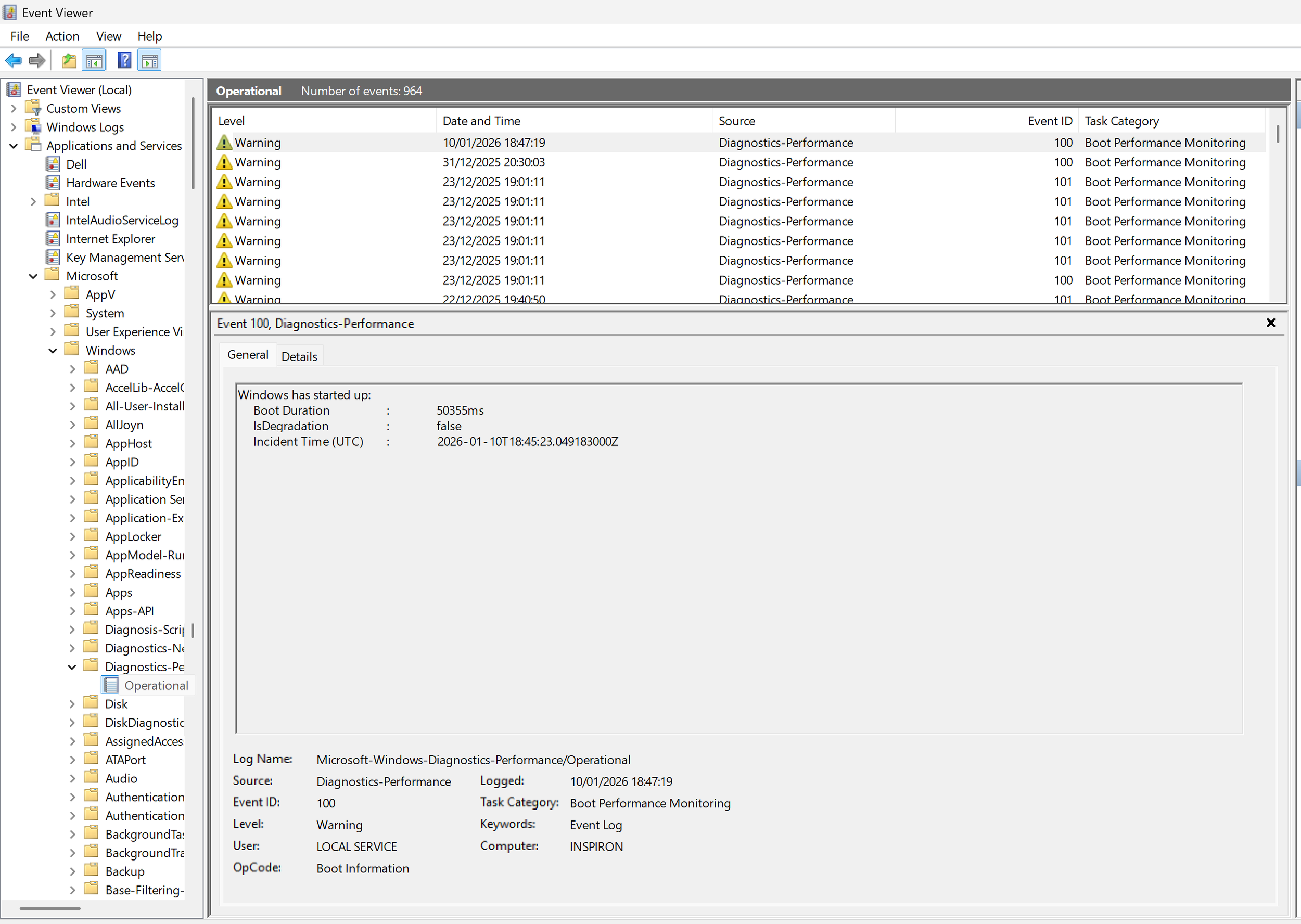
Event Viewer open on windows boot diagnostic event data
Windows Startup Performance Logging
By default, Windows stores a limited number of these events, so for long-term tracking or deeper analysis, it’s worth increasing the log size. To do this, right-click the Operational log in Event Viewer, choose Properties, and adjust the Maximum log size—setting it to 20–50 MB ensures you retain more historical data without impacting system performance. This tweak helps the script deliver more meaningful insights, especially when diagnosing intermittent or progressive startup slowdowns.
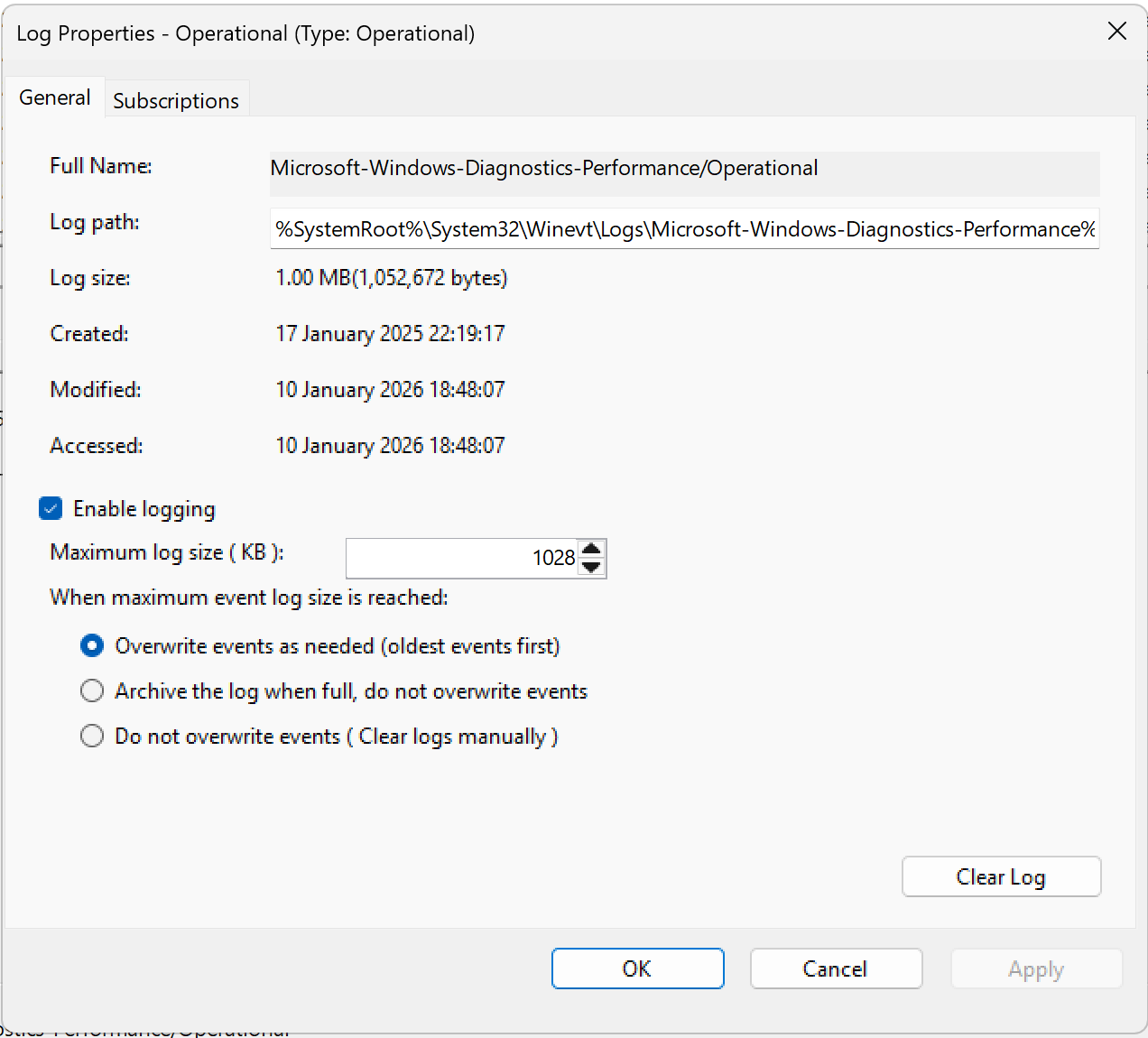
Properties on event viewer for boot time operational event log storage
How to diagnose startup issues with Boot_Performance.vbs
After you run the script, your default browser with the visualisation from the last boot is selected.
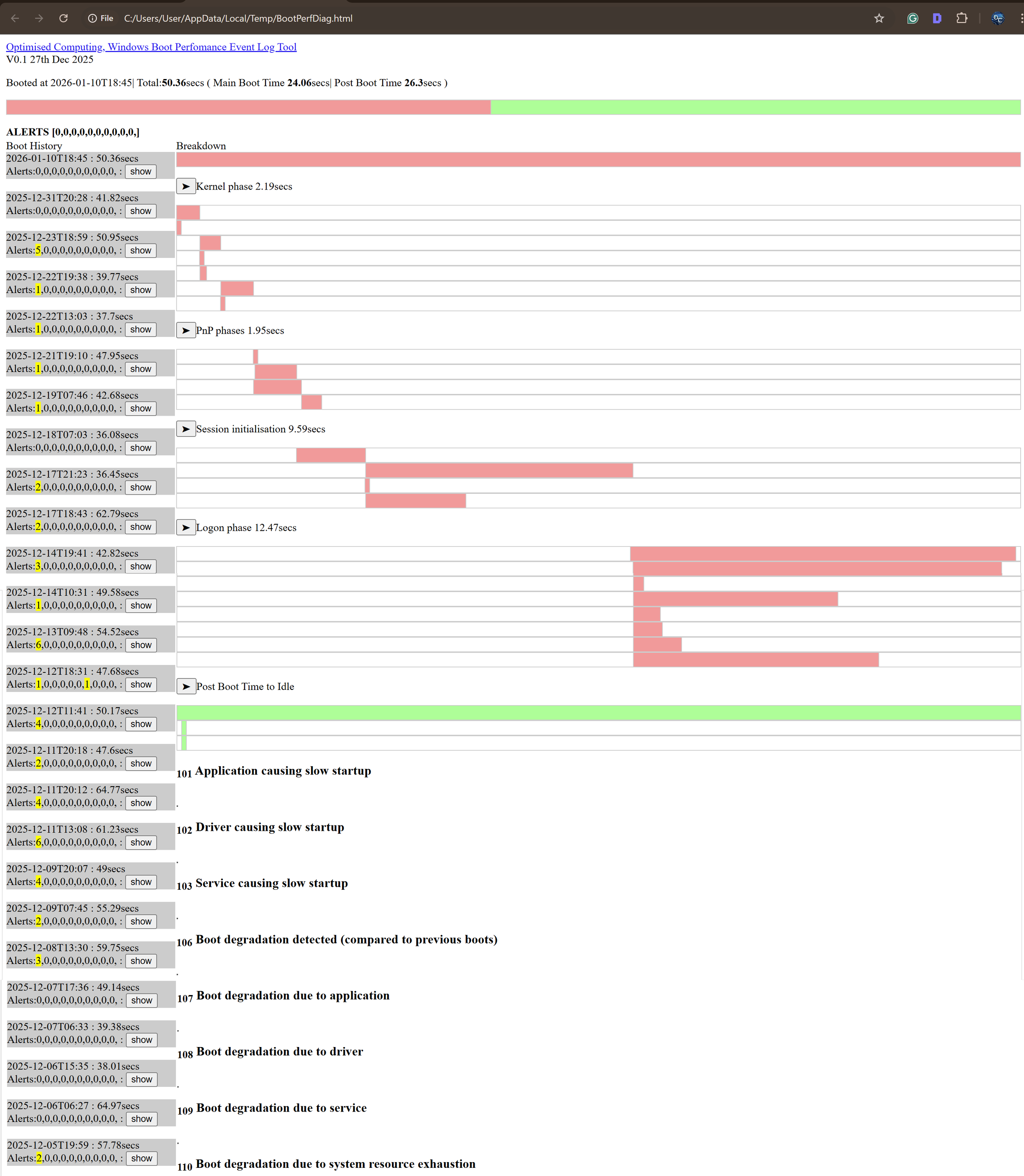
Selecting which boot to visualise.

Boot_Perfomance.vbs Selected bootup log being viewed in detail at the top of page
The list on the left-hand side is all the boots with a button "Show"; when you press this, the visualised boot detail will change to that boot.
The top will show which boot entry is being visualised as above. You get to see the total boot time and post-boot time (after login) for the total time everything your computer is set to run for each startup is complete, with some alerts highlighted, which will be specific recorded items which slowed down startup.
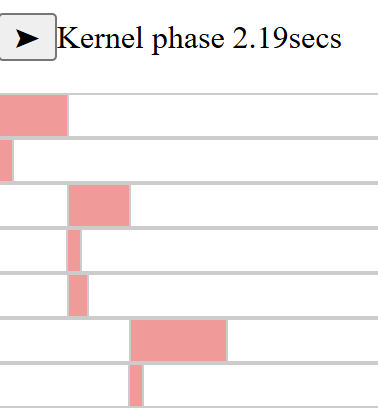
Gnatt chart view of a boot up log
The right-hand side shows a Gantt chart view of the 5 phases, as captured in the event log.
You can click the arrow next to each Phase title for more detail and move over each block of time and it will give the name of the sub phase and the amount of time it’s taken in seconds.
Press the Arrow next to each phase for a description and mouse over the exact breakdown names and durations, which will all be in seconds.
Kernel phase - This is where Windows itself wakes up — the core of the system loads and gets the computer ready to start working
PnP phases - Windows checks all your hardware (keyboard, mouse, drives, USB devices, etc.) and loads the drivers needed to make them work.
Session initialisation - Windows starts the essential background services and prepares the system so users can log in
Logon phase - Your login screen appears, and once you sign in, Windows loads your personal settings, desktop, and startup programs.
Post Boot Time - Windows is technically “ready,” but it continues loading extra background apps and services until everything has fully settled.
Highlighted Alerts for boot issues.
If there are any specific detected boot issues, the logs are recorded in these sections and highlighted in yellow.
Boot Sub event data

A boot log entry, press show to select this entry to view it
The highlighted alerts in Yellow will be broken down into type for you
- 101 – Application causing slow startup
A program took longer than expected to load during startup, slowing down the boot process.
- 102 – Driver causing slow startup
A hardware driver (like for your printer or graphics card) delayed the startup.
- 103 – Service causing slow startup
A background service (such as antivirus or update checker) started slowly and held up the boot.
- 106 – Boot degradation detected
This startup was slower than usual compared to previous boots.
- 107 – Boot degradation due to an application
A specific app made this boot slower than normal.
- 108 – Boot degradation due to a driver
A hardware driver caused this boot to be slower than previous ones.
- 109 – Boot degradation due to a service
A background service made this startup take longer than it usually does.
- 110 – Boot degradation due to system resource exhaustion
The system ran low on memory, CPU, or disk speed during startup, causing delays.
Detailed Alert event data for boot delays
The alert detailed event data will be displayed under the sub-event section.

Example of application name and time they have taken in milisecons, e.g. 11948 is 11.948 seconds for Copilot.exe to launch as part of startup.
Looking across multiple boots, you can see a pattern of which phase and any particular logged events which help understand what needs to be solved to improve any boot-up delays.