

How to Stop Your Teen Shouting While Gaming at Night (Without Being the Bad Guy)
The 11pm scream
It's gone eleven. The house is finally quiet. Then a shout comes through the wall: a last-second win, a loss, or a teammate who "threw" the game. You're wide awake, and maybe a younger brother or sister is too.
Now you have a choice. Lie there and hope it doesn't happen again, or get up, go in and be the bad guy. Going in mid-match rarely ends well. It often turns one loud moment into a much louder argument.
As our teens get older, their friends are online later, and those big gaming moments come later too. As a parent and after 30 years in IT, I wanted a fairer way to handle it. So I built a small, free Windows tool called SoundGuard. You set the rules once. The tool applies them the same way every night, and your teen learns to manage those moments themselves.
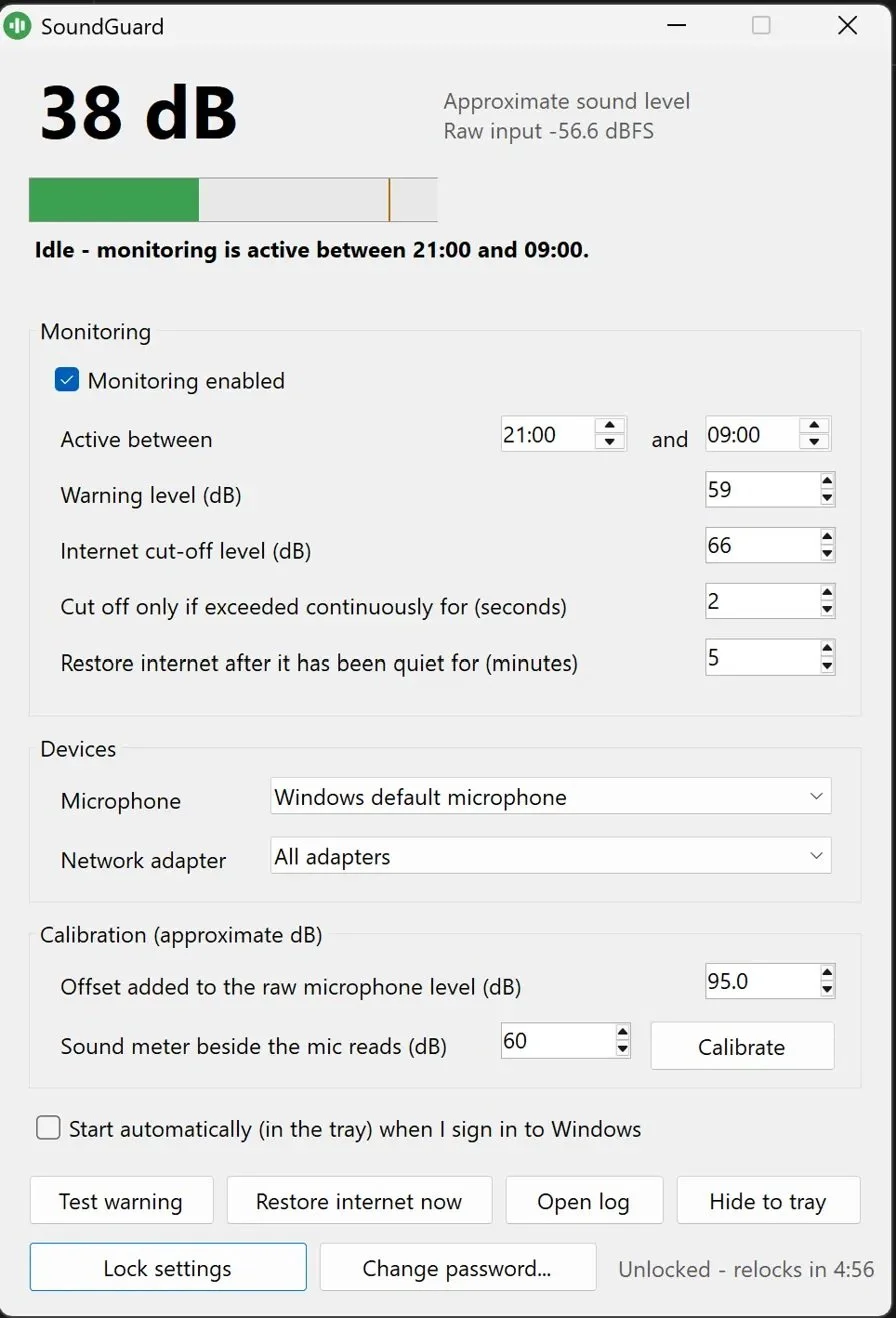
SoundGuard Settings
Why are teens so loud when gaming at night?
It's rarely deliberate. A few things stack up:
The headset: with headphones on, they can't hear how loud they are. A normal voice in their head is a shout on the landing.
Playing with friends: in Fortnite, Roblox and similar games, they're usually in a squad with mates on voice chat. Winning or losing in front of friends feels like a big deal.
Gamer rage, or "tilt": when a match goes wrong, frustration takes over. In a Tampere University study, children said they raged most over losing, poor teammates and technical problems, and the usual outlet was screaming.
Later nights: as teens get older, friends stay online later, so the loud moments come when the rest of the house is asleep.
None of this makes your teen a bad kid. It's a normal reaction in a heated moment. It just happens to wake everyone up.
Why going in to tell them off often makes it worse
Walking in mid-match feels unfair to a teenager. They're in the middle of something with their friends, and a parent at the door is embarrassing. The reply is often louder than the original shout.
Parents on forums describe the same pattern. In one Mumsnet thread, a teen who had flared up later complained that his mum hadn't followed their agreed warning system. The rules weren't the problem. Applying them by hand, tired, at 11pm, was.
Teens respond best to rules that are clear, agreed in advance and applied the same way every time. That's hard for a tired parent. It's easy for a computer.
How SoundGuard works
SoundGuard runs on your teen's gaming PC. During the quiet hours you choose, it watches the sound level from their microphone and acts on it automatically:
Quiet hours: you set when it's active, for example 21:00 to 09:00. Outside those hours it does nothing.
Warning level: if they get loud, an on-screen warning flashes. It's a nudge to bring it down, with no penalty.
Cut-off level: if they go above a higher level for more than a couple of seconds, the PC's internet is switched off. A single cough or a dropped controller won't trigger it.
The calm-down rule: the internet stays off until it's been quiet for a set time (5 minutes by default). Shouting again restarts the clock.
Back online: once they've been quiet long enough, the internet comes back on by itself.
You're not handing out a punishment. The consequence is automatic and predictable, and the way back is entirely in your teen's hands: stay calm, and they're back in the game.
What it does, and what it doesn't
Online gaming stops, offline gaming doesn't: when the internet is cut, online games like Fortnite and Roblox drop out, along with voice chat, Discord and browsing. Single-player and offline games carry on as normal.
It never records: SoundGuard only measures how loud the room is. It doesn't save audio, doesn't listen to what's said, and has no internet access of its own, so nothing is ever sent anywhere.
Only that PC: it cuts the internet on the gaming PC only. The rest of the house stays online.
Windows PCs only: it doesn't work on Xbox, PlayStation, Switch or phones.
Parent controlled: every setting is locked behind a parent password.
Agree the rules together first
This is the most important step. SoundGuard works best as a rule your teen has agreed to, not a trap. Before you switch it on, sit down together and go through:
The quiet hours and why they matter, such as work, school or a younger sibling's sleep.
What the warning means: a nudge, no penalty.
What triggers the cut-off, and exactly how to get the internet back: stay quiet.
That the microphone level is monitored, but nothing is recorded or listened to. Being open about this builds trust.
Let them help with the testing (see below) so they hear for themselves what "too loud" sounds like. A useful tip: suggest they tell their squad, "If I drop out, it's the quiet rule." It takes the embarrassment out of it.
The point is that you're no longer the one walking in. The rules do the work, and your teen gets to manage those moments themselves.
Download and set up SoundGuard
SoundGuard is free, with no account, no adverts and no sign-up.
Download: SoundGuard v1.0 for Windows
Works on: Windows 10 and Windows 11
SoundGuard needs administrator rights to install, because it controls the PC's network connection. Set it up while signed in to your own (parent) administrator account.
Step 1:
Best to place in a folder called “SoundGuard” under C:\ Drive

Step 2: Run the soundguard.bat as administrator will install.

Step 3:The first run will ask you to set the parental control admin password.
Note: This isn't essential, but it's recommended for good parental control of a teen account on a Windows PC; the program will work without it.
Before you start: give your teen a standard account
If your teen's Windows account is an administrator account, change it to a standard account first. Go to Settings > Accounts > Other users, select their account, choose Change account type and pick Standard User. This keeps SoundGuard and its settings in your control, this could uninstall or disable.
Setting it up step by step
Install and open SoundGuard on the gaming PC.
Set your parent password when prompted. Keep this to yourself.
Set the quiet hours: tick Monitoring enabled, then set Active between, for example 21:00 and 09:00.
Choose the microphone: under Devices, pick the microphone your teen actually uses. A headset mic sits close to their mouth, so it picks up their voice rather than the rest of the room.
Choose the network adapter: leave this on All adapters, so the cut-off covers both Wi-Fi and a wired connection.
Calibrate (optional but recommended): the reading is an approximate decibel level. For a more accurate figure, put a free sound meter app on your phone right beside the mic, make a steady noise, type the phone's reading into Sound meter beside the mic reads (dB) and press Calibrate.
Set the levels: the defaults are a Warning level of 59 dB and an Internet cut-off level of 66 dB. Adjust these after you've tested them together (see below).
Set the timings: Cut off only if exceeded continuously for 2 seconds stops a single bang from triggering it. Restore internet after it has been quiet for 5 minutes sets the calm-down time.
Tick Start automatically (in the tray) when I sign in to Windows. Without this, SoundGuard won't be running when you need it. [confirm: does this cover your teen's account?]
Press Lock settings, then Hide to tray. If you leave the settings unlocked, they lock again automatically after a few minutes.
[Screenshot: settings with example values]
Test it together
Do this with your teen, so there are no surprises on the first night:
Press Test warning so they see what the warning looks like.
Set the quiet hours to include now, temporarily, so monitoring is live.
Talk normally with the headset on. The bar should stay green. If it hits the warning, nudge the levels up.
Have an excited shout. It should trigger the warning.
Have a proper yell. The internet should cut off. Then stay quiet and watch it come back after the calm-down time.
Put the quiet hours back and lock the settings.
Two buttons are useful afterwards. Restore internet now is your parent override if you need it. Open log shows when warnings and cut-offs happened. Use it for a calm chat the next morning, not as ammunition.
Frequently asked questions
Does SoundGuard record my child's voice? No. It only measures the sound level. No audio is saved or listened to, and the app has no internet access of its own.
Will it cut off the whole house's internet? No. Only the gaming PC it's installed on goes offline.
Does it work on Xbox or PlayStation? No. SoundGuard is for Windows PCs only.
What if my teen is playing an offline game? Nothing changes for them. Offline and single-player games aren't affected by the internet cut.
Can my teen get around it? A determined, tech-savvy teen can get round most parental controls. The best protection is to give them a standard Windows account, keep the parent password to yourself, and agree the rules together. A rule they've signed up to is far less likely to be fought.
Will a sibling or the dog set it off? It picks up any loud noise near the microphone. A headset mic close to your teen's mouth helps, and you can adjust the levels if other noise triggers it.
What happens at the end of quiet hours? Monitoring stops and everything carries on as normal. [confirm: does it restore the internet if it's cut off at that moment?]
Is it really free? Yes. There's no cost, no account and no adverts.
Need a hand setting it up?
If you'd rather not change account settings yourself, or your teen's PC needs a tidy-up first, I can help. Optimised Computing is a local, mobile computer service based in Hampton Bishop, covering Hereford and the whole of Herefordshire, including Ledbury, Leominster, Ross-on-Wye, Bromyard and Kington.
Call 0777 9570906 or message me on WhatsApp, and I'll get SoundGuard set up and the levels tuned for your home. <Contact Us>