

Dead ASUS ROG GL553VD Gaming Laptop? How to Identify the Right Replacement Motherboard (And What's Involved in Fitting It)
After working with an ASUS ROG GL553VD that was completely dead — no lights, no fan, no response to the power button, nothing. No boot, no beep, nothing on screen. After working through the usual power-path checks, the fault came back to the motherboard itself. The good news: on this generation of ASUS gaming laptop, that's a solved problem. A replacement board is a genuinely affordable part, and swapping it brings a laptop that would otherwise be scrapped fully back to life. The confusing part is working out exactly which board to order, because ASUS reused this exact chassis across two different hardware generations and sold it under a dozen-plus model names — and sellers aren't always consistent about which variant they're actually listing.
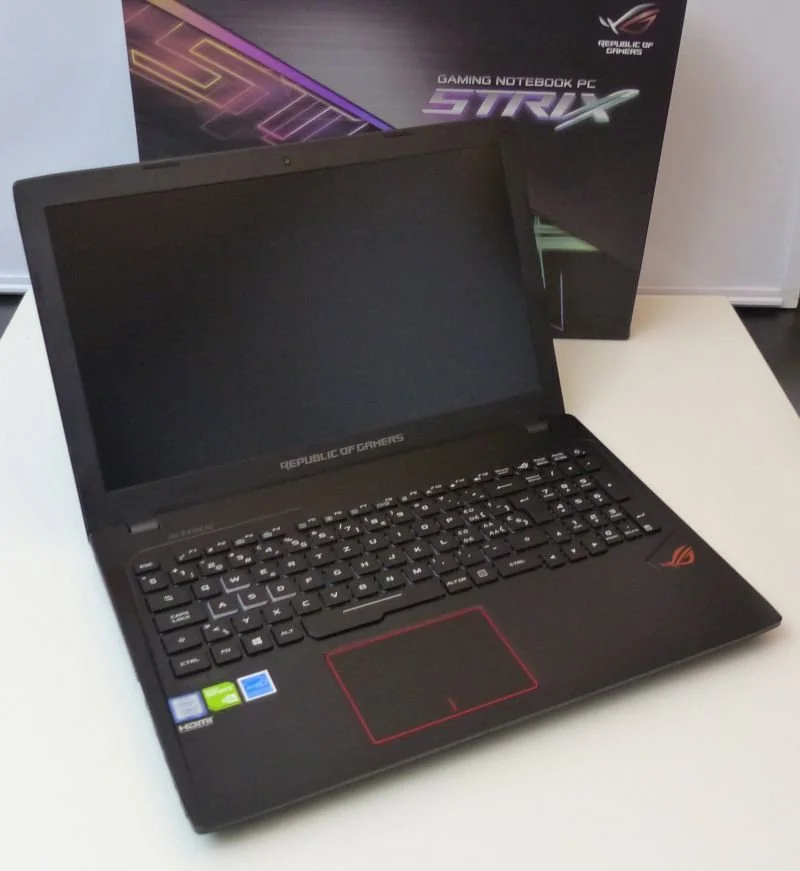
ASUS ROG GL553VD
One chassis, two board generations, a dozen laptop names
The GL553VD's board isn't unique to that one model number, and it isn't even unique to one generation of internals. ASUS reused the same 15.6" chassis, screw holes and connector layout across two back-to-back hardware refreshes, sold through different retail channels and markets under a long list of model numbers. Check your laptop's serial/model sticker (usually on the base, sometimes under the battery) against these:
7th Gen (Kaby Lake) boards — GTX 1050 / GTX 1050 Ti: GL553VD, GL553VE, FX553V / FX553VE, FX53V / FX53VD, ZX53V, FZ53V, and reportedly ZX63V on some regional listings. GL553V is often used as the generic family name for this generation.
6th Gen (Skylake) boards — GTX 960M: GL553VW, GL552VW, FX53VW, and ZX53VW.
Same outer shell, same mounting points, same port layout — but the two generations are not interchangeable, because the CPU is soldered directly to the board (there's no removable socket) and it's matched to a specific chipset and GPU. Getting the model name right only narrows you down to a generation; you still need to match the exact CPU and GPU underneath.
Getting the CPU, GPU and memory variant right

Label from a ASUS ROG GL553VD Variante
Within each generation, the board comes in a handful of configurations that are not interchangeable if you want everything working as it did before:
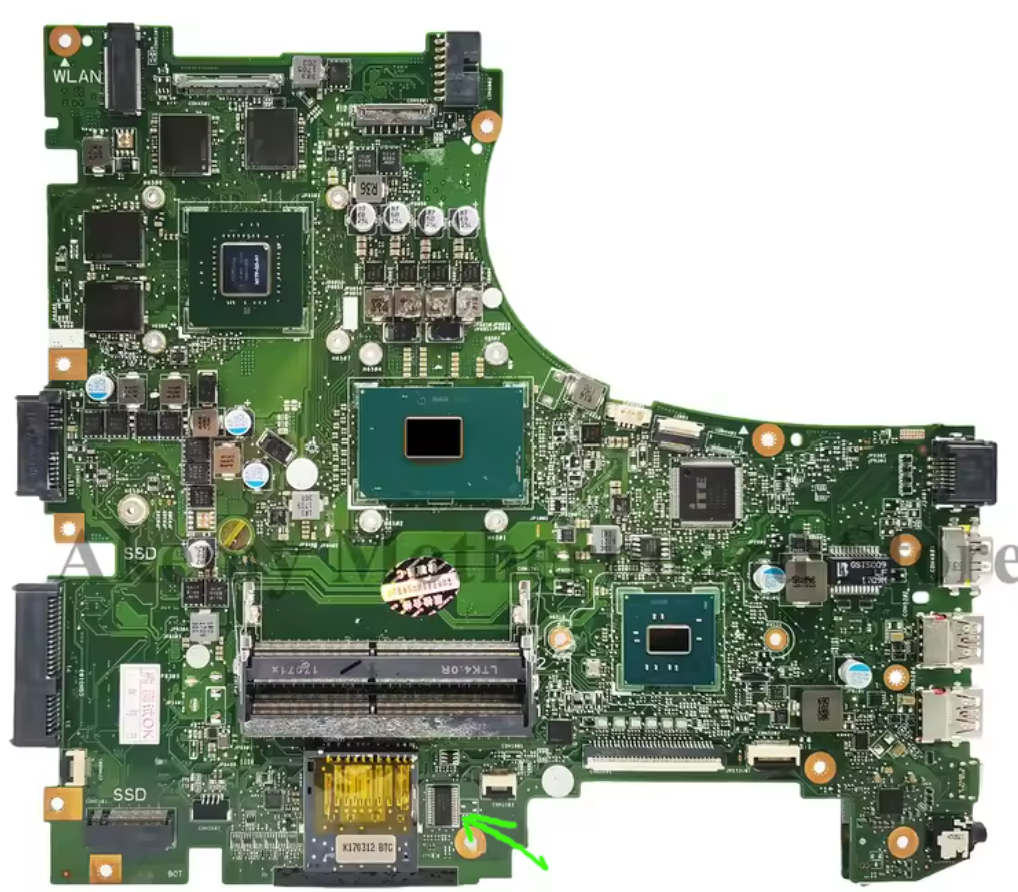
Top of a GL553VD Motherboard
7th Gen boards pair with either the Intel Core i5-7300HQ (quad-core, no Hyper-Threading) or the Intel Core i7-7700HQ (quad-core with Hyper-Threading, higher clocks), alongside either a GTX 1050 or GTX 1050 Ti GPU. In ASUS's own naming, the "D" boards (GL553VD, FX53VD) pair with the GTX 1050, while the "E" boards (GL553VE, FX553VE) pair with the GTX 1050 Ti — a genuinely faster GPU with more CUDA cores and a higher clock, so don't treat D and E as interchangeable just because the rest of the board looks identical. Even within "GTX 1050" listings you'll see boards specified as 2GB or 4GB VRAM variants, so check what your original GPU carried before you order.
6th Gen boards all pair with a GTX 960M, but the CPU still varies: Intel Core i5-6300HQ, Intel Core i7-6700HQ, or the higher-spec Intel Core i7-6820HQ. These are the GL553VW/GL552VW/FX53VW/ZX53VW-branded boards, and while the chassis is identical to the newer GTX 1050 machines, the internals — and the correct replacement board — are entirely different.
Whichever generation you're on, match the CPU and GPU printed on your old board's heatsink cover or heat spreader, or check what Windows previously reported (Task Manager → Performance, or dxdiag) before it died, so you don't accidentally downgrade — or order a board that simply won't fit your GPU cooler.
RGB keyboard or single-colour backlight — the "A" and "B" confusion
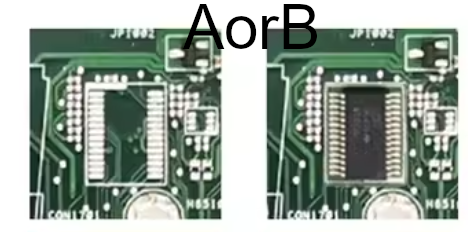
Motherboard A or B GL553VD, RGB LED controlle or NOT
This is the detail that catches people out, and it's worth being precise about because retailers are not consistent here. You'll often see boards listed simply as "version A" and "version B" with no real explanation — and which letter means what changes from seller to seller. Ignore the letters and focus on the actual hardware difference:
Some boards in this family carry an onboard RGB LED keyboard controller, driving a multi-zone, multi-colour backlit keyboard (the one with the ROG Aura-style lighting). Others were built for laptops with a simple single-colour backlight — on this generation that's almost always red — with no RGB controller circuitry present at all.
Fit the wrong one and the keyboard backlight either won't light up correctly, won't respond to lighting software, or won't illuminate at all — the connector may even be a different pinout. Before ordering, check your existing keyboard: if it glows in multiple colours and you had Aura Sync or similar software installed, you need the RGB-controller board. If it only ever glowed a plain red, you need the single-colour variant. When in doubt, message the seller with a photo of your old board (or your old keyboard) rather than trusting an "A" or "B" label alone.
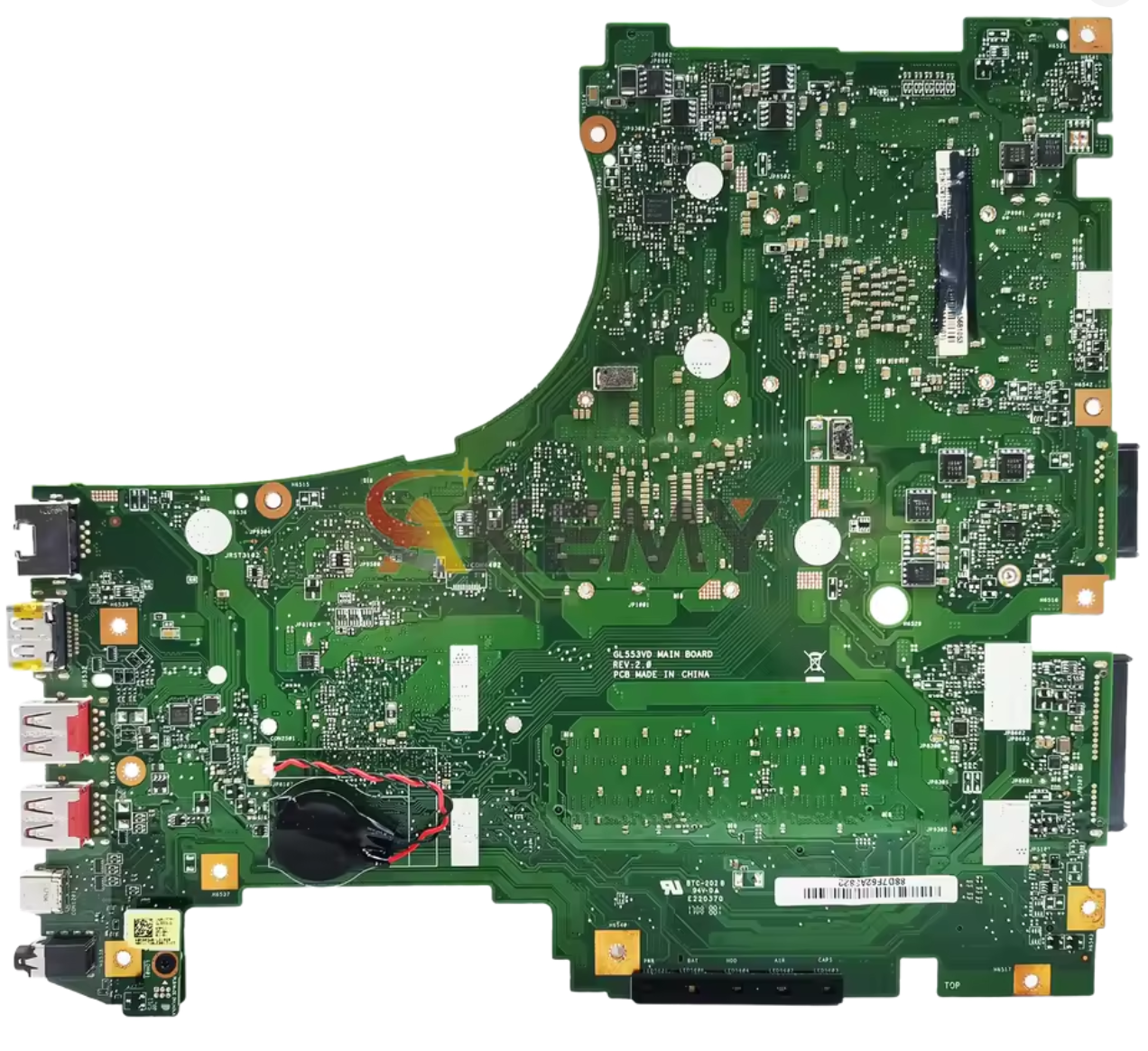
Back of GL553VD Motherboard
How we isolated it down to the motherboard
Before condemning any board, it's worth working through the fault methodically — a dead motherboard is often the last thing you should conclude, not the first, because plenty of "won't power on" laptops are actually a failed DC jack, a swollen battery holding the power rail down, or a dead charger. Here's the order we worked through:
Visual check first. Inspect the DC jack for cracked solder joints or play in the barrel, check the battery for swelling, and look for any obvious corrosion, burn marks or liquid damage around the jack and VRM area near the CPU socket.
Confirm the charger is actually delivering power. With a multimeter set to DC volts, check the adapter's output at the barrel connector — it should read close to its rated output (19V–19.5V is typical for this ASUS range). No reading, or a reading well off that figure, points at the adapter, not the laptop.
Test with and without the battery. Try powering on from the adapter alone with the battery removed, then from the battery alone. A laptop that won't start on either points more strongly at the board or the DC jack than at either power source individually.
Check continuity from the jack to the board. With the laptop unplugged and the battery removed, use continuity mode to check the DC jack's centre pin and ground through to its solder points on the motherboard. A dry joint or hairline crack here is a very common cause of "dead" laptops that turn out to be a five-minute fix, not a motherboard replacement.
Strip back to a minimum boot configuration. Disconnect the HDD, ODD, WiFi card and any USB peripherals, and try powering on with just the CPU, one stick of RAM, and the screen connected. If there's still zero response — no fan spin, no power LED, no keyboard backlight flicker — that's a strong indicator the board itself has failed, particularly since this generation of ASUS gaming laptop doesn't give you diagnostic beep codes to lean on.
Reseat and single-stick the RAM. Try each memory stick individually in each slot. A dead RAM slot or a failed stick can present as a completely dead system on some boards.
Only once the DC jack, charger, battery and RAM were all ruled out did we land on the motherboard as the actual point of failure.
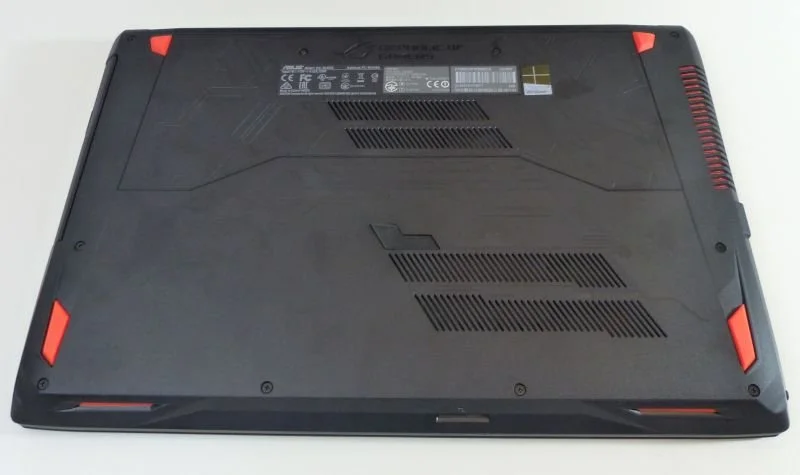
Base of a ASUS ROG GL553VD Variant
Taking it apart: the disconnection order
Once you've got the right replacement board on order, getting into the chassis is straightforward if you work through the connectors in a sensible order rather than pulling at things. After removing the base cover screws and lifting the base panel, this is roughly the sequence:
Disconnect the battery first, always, before touching anything else electrical inside the chassis. Then work through: the DC jack cable, the screen/display cable (note the routing before you unclip it), the WiFi card — unscrew the card itself and carefully unclip the two (sometimes three) antenna cables, the M.2 NVMe SSD, the SATA HDD cable and caddy, the SATA optical drive if fitted, the internal I/O board ribbon connector, the keyboard ribbon cable and the separate keyboard backlight connector, and finally the fan connector(s).
With everything disconnected, the board lifts free once its mounting screws are out.
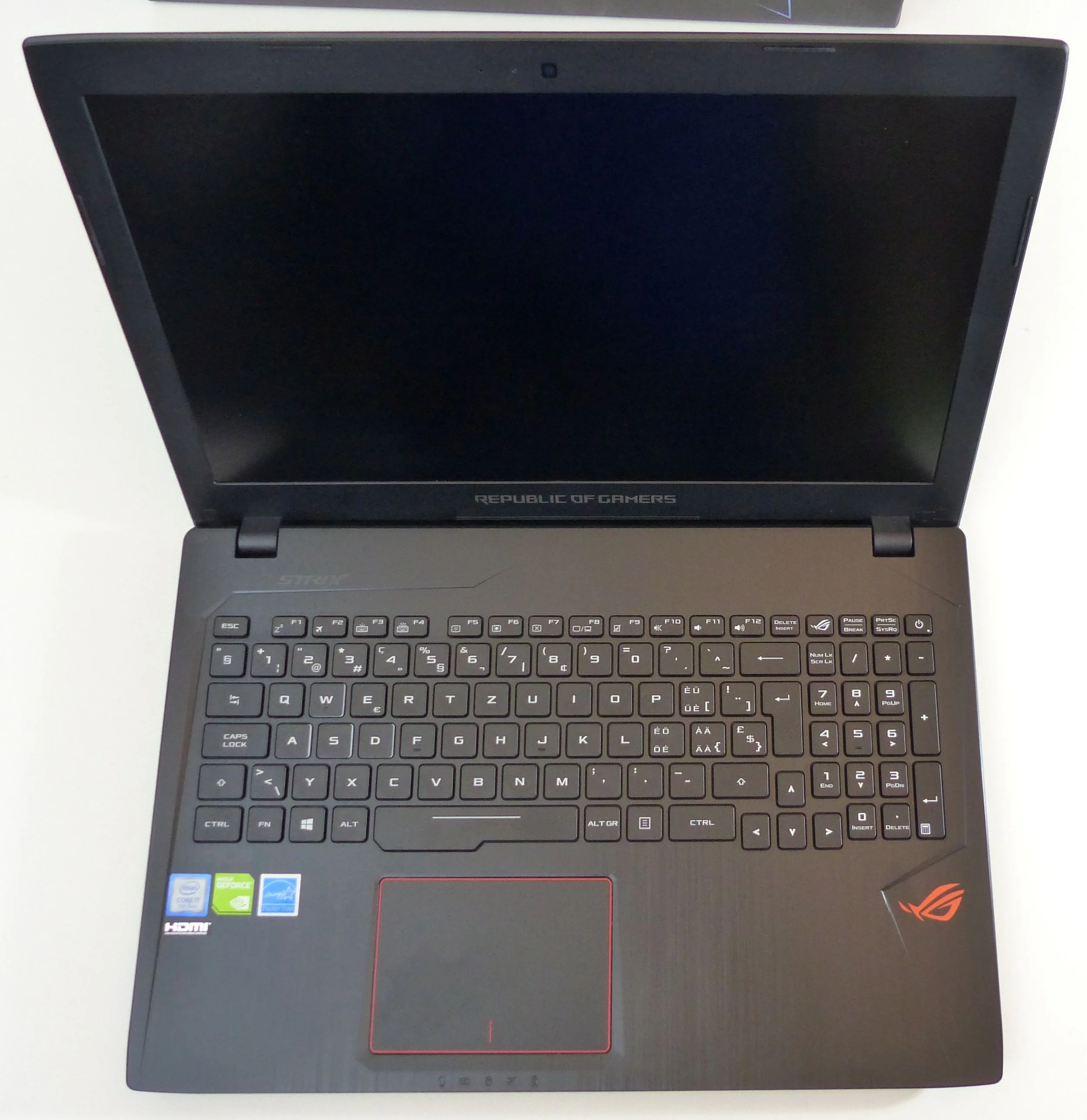
the open keyboard and screen from a ASUS ROG GL553VD Variant
While you're in there: do the thermal paste
Because replacing this motherboard means removing the CPU/GPU heatsink assembly to transfer it across (or fit the one supplied with the replacement), you're already most of the way to a full repaste anyway. It's worth doing properly rather than skipping it — three or four years of factory thermal paste on a laptop that runs an H-series quad-core and a dedicated GPU in a tight chassis is usually well past its best, and a fresh application on both the CPU and GPU die noticeably improves sustained gaming temperatures and reduces fan noise under load. Clean off the old paste with isopropyl alcohol on both the dies and the heatsink contact plates before reapplying.
Reassembly and cost
Reassembly is the disconnection order in reverse — fan first, then keyboard and backlight, I/O board, optical and hard drive, M.2, WiFi card and antennas, screen cable, DC jack, and the battery last, right before you close it up and test power-on before refitting the base cover fully.
The replacement board itself typically comes in under £150, against a new equivalent ASUS gaming laptop running well over £700–£900 for anything close to the same GTX 1050-class specification today. For a laptop that's otherwise in good condition — chassis, screen, keyboard and battery all fine — a motherboard swap is by far the more sensible route, and it keeps a perfectly good machine out of landfill.
Get it done properly
If you've got a dead GL553VD, GL553VE, GL553VW, FX553V, FX53V, FX53VW or ZX53V sitting unused — or any gaming laptop that's stopped powering on — we can diagnose it properly before you spend money on parts, source the correct board variant, and carry out the repair including a full thermal repaste. We cover Hereford, Hampton Bishop, Leominster, Ross-on-Wye, Ledbury, Bromyard, Kington and the rest of Herefordshire, with mobile, drop-off and collection options.
Get in touch via optimisedcomputing.co.uk or call 0777 9570906.
Quick FAQ
What laptop models use the GL553VD-family motherboard? The same chassis and connector layout is sold under GL553VD, GL553VE, GL553VW, GL552VW, FX553V, FX553VE, FX53V, FX53VD, FX53VW, ZX53V, ZX53VW, and FZ53V — with ZX63V also turning up on some regional listings. They split into two hardware generations: 7th Gen (GTX 1050 / 1050 Ti) and the earlier 6th Gen (GTX 960M).
What's the difference between GL553VD and GL553VE? Both are 7th Gen boards. The GL553VD pairs with a GTX 1050; the GL553VE pairs with a faster GTX 1050 Ti. Everything else in the chassis is essentially the same.
What's the difference between GL553VD and GL553VW? They share the identical outer chassis, but GL553VW is the older 6th Gen (Skylake) board — Core i5-6300HQ, i7-6700HQ or i7-6820HQ paired with a GTX 960M — while GL553VD is the newer 7th Gen (Kaby Lake) board with GTX 1050. The CPU is soldered on both, so the boards are not interchangeable between generations even though they bolt into the same shell.
How do I know if I need the RGB or single-colour board? Check your existing keyboard backlight. Multi-colour, software-controlled lighting means you need the RGB-controller board. A plain red glow with no lighting software means you need the single-colour variant. Retailer "version A/B" labels aren't consistent, so go by the actual hardware, not the letter.
Tags
ASUS ROG GL553VD gaming laptop motherboard repair Herefordshire laptop motherboard replacement Hereford ASUS GL553VE GL553VW FX553V FX53VW ZX53V dead laptop repair Hereford gaming laptop repair Hampton Bishop laptop no power diagnosis thermal paste replacement gaming laptop computer repair Herefordshire mobile laptop repair Hereford