

iMac 21.5" A2116 (2019) Slow to Log In, Mail Crashing? How We Fixed a Failing Fusion Drive
iMac Login is taking minutes, and Mail is giving up entirely
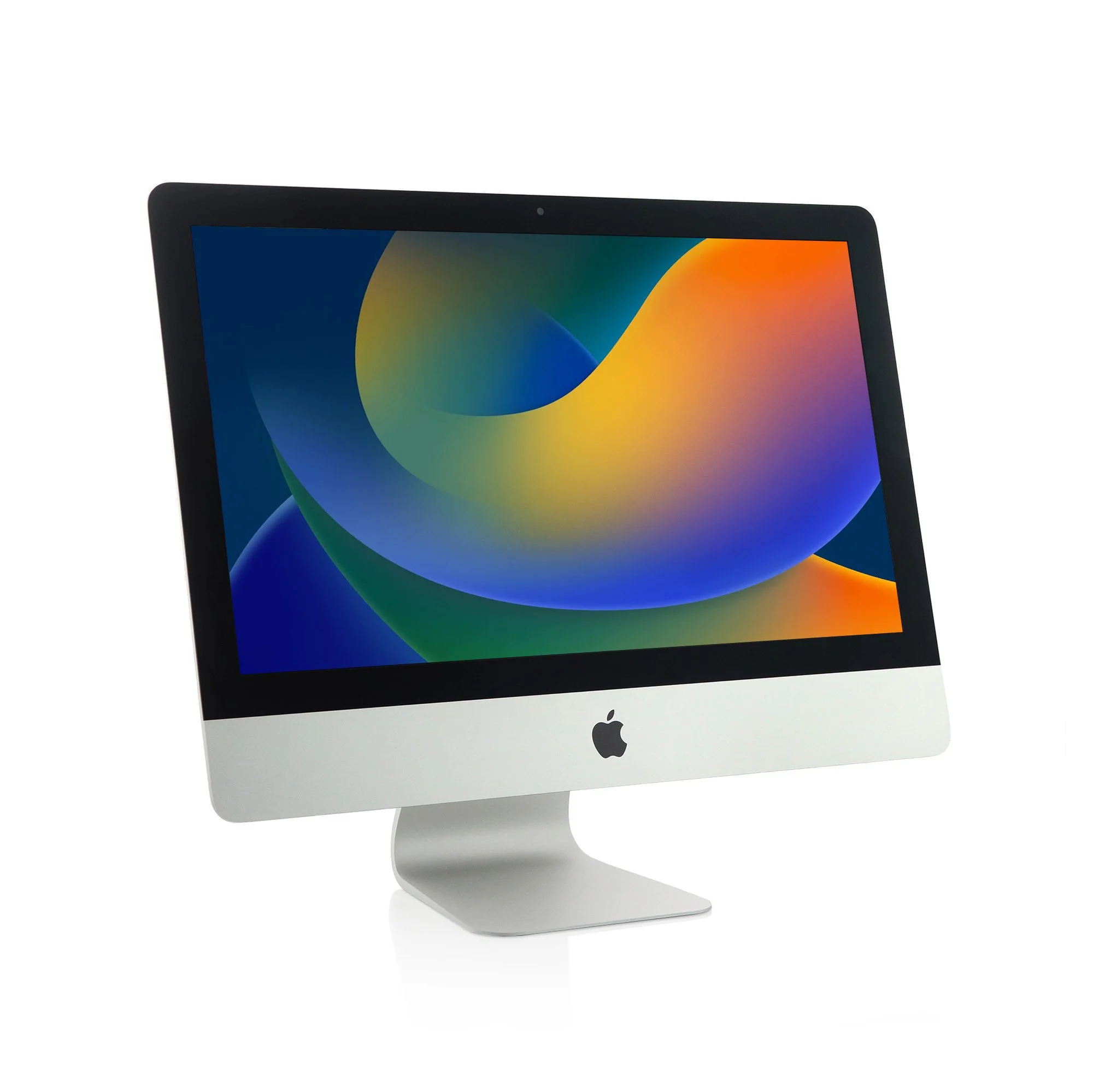
Apple Imac 21.5” A2116 Emc No: 3195
This iMac came in with two complaints: it was taking a very long time to get from the login screen to a usable desktop, and Mail — one of the customer's main apps — would hang and then crash outright. Both symptoms point the same way: something is badly wrong with how fast the machine can read and write data.
To confirm it rather than guess, I ran a simple disk speed test in Terminal — writing 5GB of zero data to the disk, then reading it back:
Write test: dd if=/dev/zero of=testfile bs=1m count=5000
Read test: dd if=testfile of=/dev/null bs=1m
On a healthy SSD or HDD 5GB should move in a couple of seconds. On this iMac, both the write and the read took 30 seconds or more. That's not a "getting old" slowdown — that's a drive in real trouble, and it explains both symptoms perfectly. Mail keeps a large local database it's constantly reading from and writing to, so it's usually the first app to fall over when disk performance collapses like this.
Why a Fusion Drive fails this way
This model — like a lot of iMacs from 2012 through 2019 — shipped with a Fusion Drive: a small SSD and a traditional spinning hard drive, combined by macOS into one logical volume. Frequently used files live on the fast SSD side, everything else sits on the mechanical hard drive, and macOS quietly shuffles data between the two in the background.
It's a clever way to get SSD speed with hard-drive capacity on a budget, but it has a weak point — the mechanical drive. When that hard drive starts to fail or simply wears out, the whole Fusion Drive behaves as if it's crawling, because macOS still needs it for anything that isn't currently cached on the SSD side. A slow login and a crashing Mail app were both symptoms of the same underlying hard drive giving up.

Apple Fusion Drive, HDD + SSD
Why we went in through the SATA bay, not the PCIe slot
The 21.5" A2116 has two internal drive interfaces: the mechanical hard drive sits on a standard SATA connection, while the small Fusion Drive SSD is a PCIe blade mounted on the logic board itself. Replacing that PCIe blade means pulling the entire motherboard, which sits at the back of the machine behind the cooling assembly and ports — a big, time-consuming job with more risk attached.
The SATA hard drive bay, by comparison, is reachable without touching the logic board at all. So rather than chase the PCIe blade, we replaced the mechanical hard drive with a 1TB SATA SSD, removing the weak link in the Fusion Drive pair and giving the whole machine a full SSD-speed upgrade in the process.
Opening the iMac: breaking the glass seal
The 21.5" Retina iMacs have their front glass and display held in place with a ring of adhesive strip around the edge, so the first job is breaking that seal cleanly with a proper adhesive-cutting tool — worked slowly around the perimeter rather than forced, to avoid cracking the glass or damaging the display underneath.
With the glass and display lifted clear, there are two cable connectors to release before the display comes free completely:
A standard pull connector — releases with a straight, steady pull, no locking mechanism to worry about.
A black-tab locking connector — this one has a small black bar that needs to be pulled/flipped up first to unlock the connector before the cable will release. Pulling on the cable itself without releasing the tab first is the easiest way to damage it.
Underneath, the mechanical hard drive is held by four screws. Remove those, disconnect the drive's SATA and power cables, and it lifts straight out — replaced with the new SATA SSD in the same bracket.
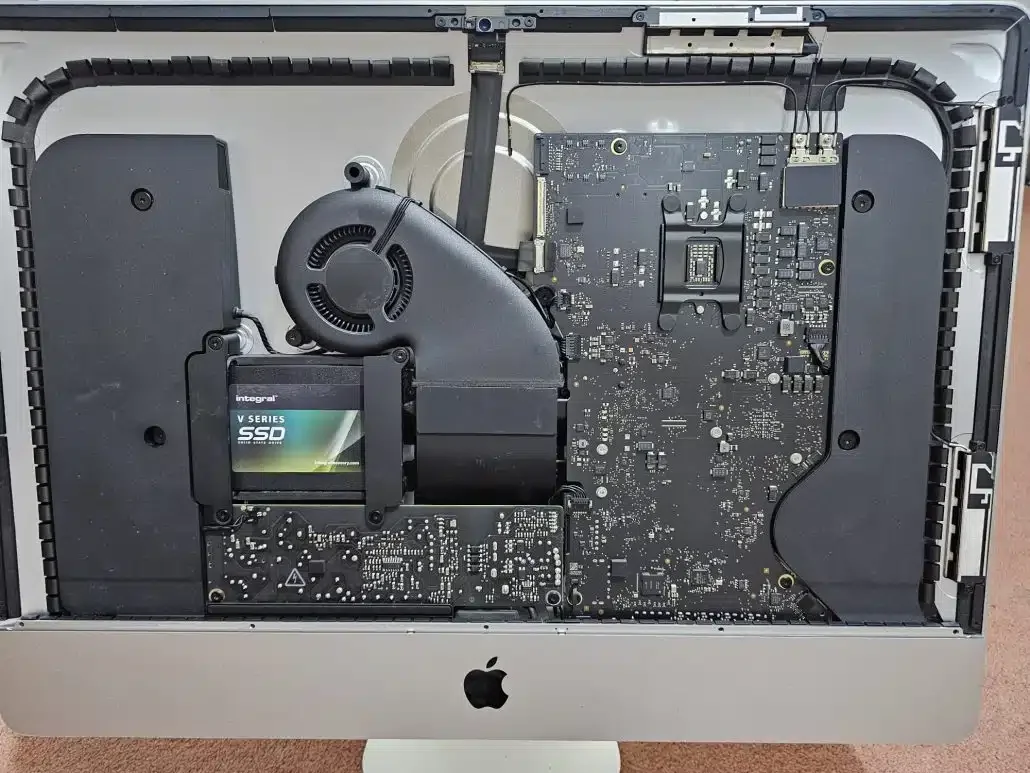
Open screen removed Apple iMac A2116 EMC3195 for HDD to SSD swap
Protecting the customer's data before touching anything
Before any of the drive replacement or macOS reinstall work, the customer's original hard drive was connected externally using a USB HDD caddy. That original drive was never written to or erased — it stayed as a safe, complete copy of everything the customer had, right up until it was needed for the migration step at the end.
Getting Internet Recovery to install the current macOS
With the old blade SSD still fitted (holding the original Fusion Drive's recovery partition) but the whole Fusion pairing effectively broken once the mechanical side was replaced, the cleanest path was Internet Recovery — this downloads a fresh recovery environment directly from Apple and, on an Intel iMac, installs the newest version of macOS that model can still run, rather than whatever came pre-installed years ago.
On a Mac keyboard: hold Command + Option + R as the iMac powers on, and keep holding until you see a spinning globe.
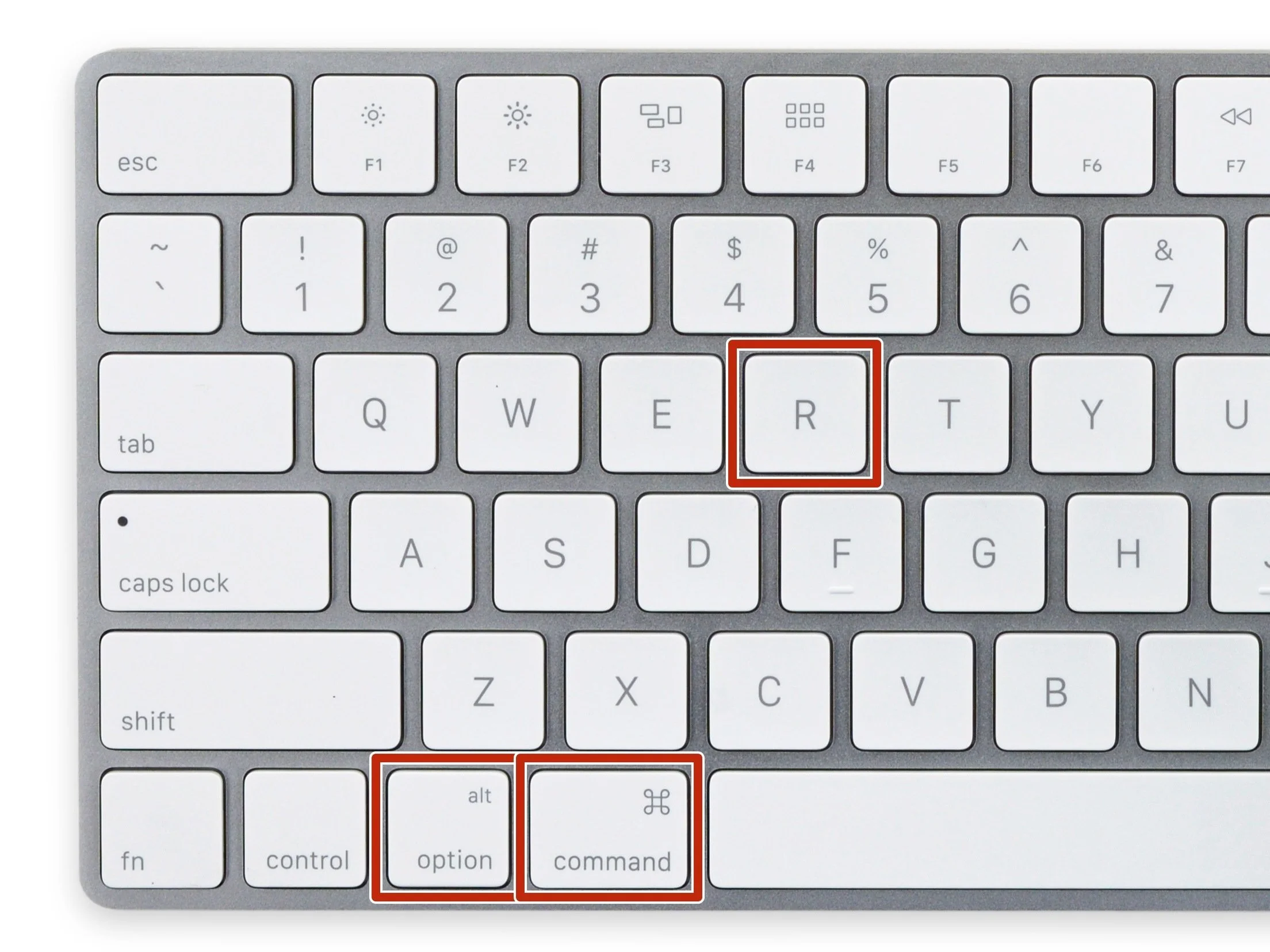
Apple iMac Latest Recovery for Latest MacOS combonation
On a Windows keyboard (useful if you're used to a PC keyboard, or the iMac is temporarily paired with one): Windows key + Alt + R. The Windows key maps to Command, and Alt maps to Option, so the physical key positions line up the same way.
There's no local recovery partition available once the drive pairing is disturbed like this, so Internet Recovery needs a solid internet connection and takes roughly 20 minutes to download before the recovery screen appears — worth knowing in advance so it doesn't look like the machine has frozen.
Inside Recovery: preparing the new drive
Once Internet Recovery loads, Disk Utility shows every physical drive attached to the machine at the top level — in this case, the new SATA SSD and the original small PCIe blade SSD. From here:
The new SATA SSD is formatted as a full APFS volume with GUID Partition Map, ready to be a proper standalone boot disk rather than half of a Fusion pair.
The original internal PCIe blade SSD is erased, clearing out any leftover trace of the old Fusion Drive configuration so macOS doesn't try to rebuild a pairing with a drive that's no longer part of the setup.
With both drives prepared, Reinstall macOS installs the latest compatible version for this iMac model fresh onto the new SATA SSD.
Migration Assistant: bringing the data back exactly as it was
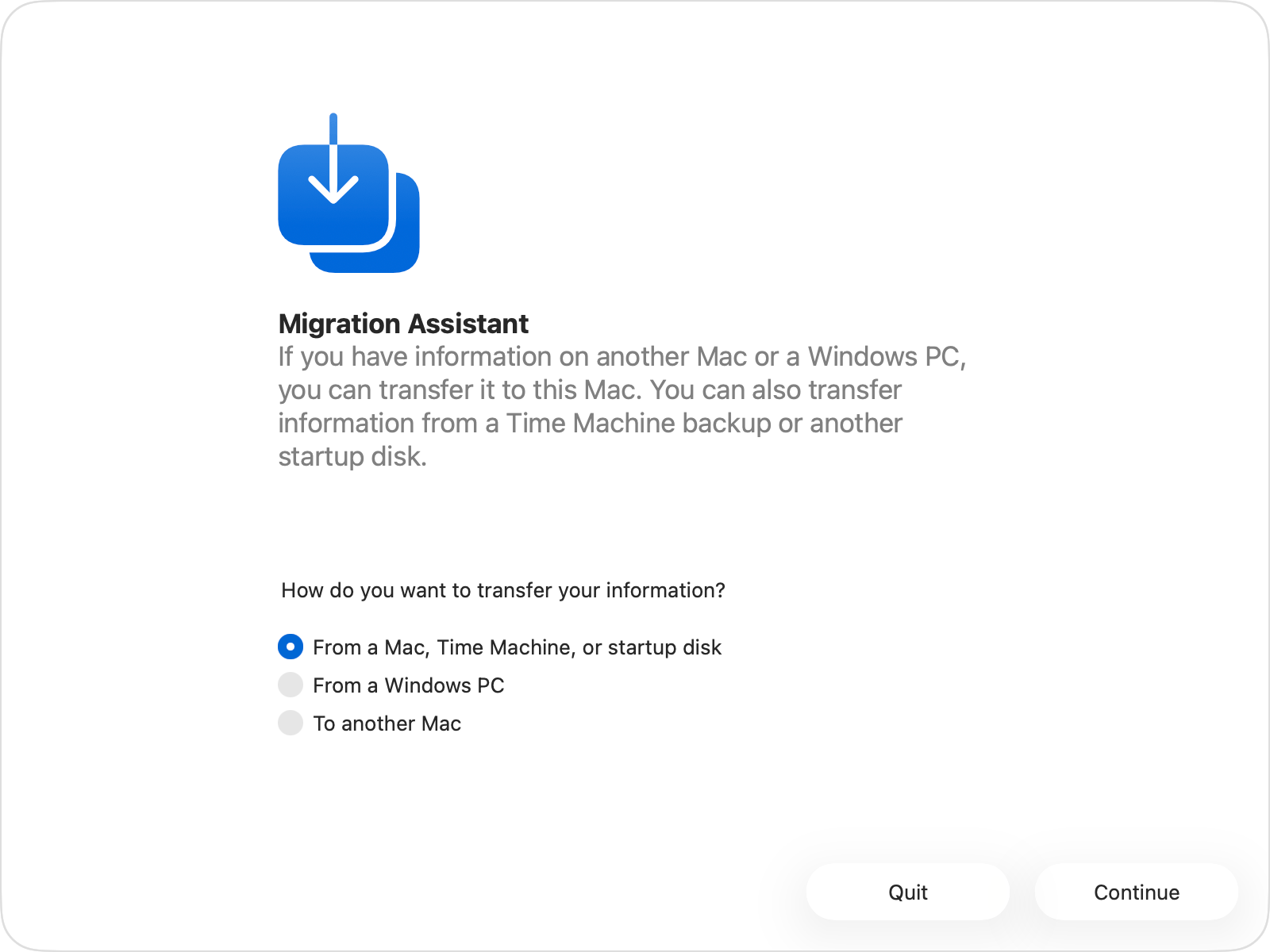
Near the end of the install, macOS offers to migrate data from another Mac or backup. This is where the USB HDD caddy holding the customer's original hard drive comes back in — plugged in at that point, Migration Assistant reads it directly and restores the user's account, files, apps and settings, essentially rebuilding the Mac exactly as the customer had it, just running on the new SSD.
Sealing it back up
With everything migrated and checked, the display goes back on and the glass is resealed using the correct replacement adhesive strip for this model — not generic double-sided tape, which won't hold the same way or give the same clean edge.
The result
Same test, same commands, run again after the rebuild: the 5GB write and read that had taken 30+ seconds each before now complete in a few seconds. Mail opens instantly and stays open. Login is fast. The iMac is fixed, and the customer's entire history — years of email, documents and photos — came across without a single file lost.
Is your iMac affected? Other models with the same Fusion Drive weak point
The A2116 isn't the only iMac with this design, and if yours is showing the same slow-login, crashing-app symptoms, it's very likely the same underlying cause.
21.5" tapered-edge iMacs with the same Fusion Drive setup
These share the same SATA hard drive plus PCIe blade SSD arrangement, and the same repair approach applies:
Late 2012 (A1418, EMC 2544)
Late 2013 / Mid 2014 (A1418, EMC 2805)
Late 2015, non-Retina and Retina 4K (A1418, EMC 2833 / 2889)
Mid 2017, Retina 4K (A1418, EMC 3069)
Early 2019, Retina 4K (A2116, EMC 3195) — the model covered above
27" Retina 5K iMacs — worth checking too
The larger 27" iMacs (A1419, spanning Late 2012 through 2020) also shipped with Fusion Drive options across most of that range. The internal layout differs slightly, but the underlying failure pattern is the same: a mechanical hard drive that slows down or fails, dragging the whole Fusion Drive down with it.
If your iMac — any of the models above — is slow to log in, an app is crashing unexpectedly, or it just feels like it's grinding rather than running, it's worth having the drive checked before it fails completely and takes your data with it. Optimised Computing covers Fusion Drive diagnosis, SSD upgrades and safe data migration across Hereford and Herefordshire, including Ledbury, Leominster, Ross-on-Wye, Bromyard and Kington — get in touch and I'll come to you.